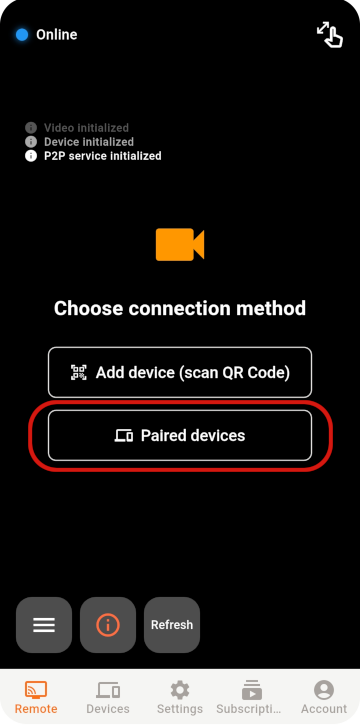
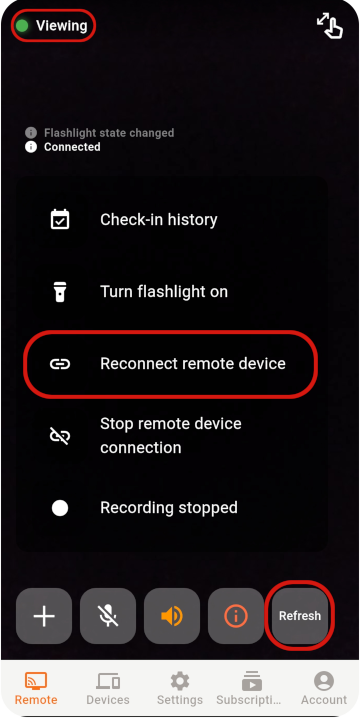
Choose the Viewer and Monitor
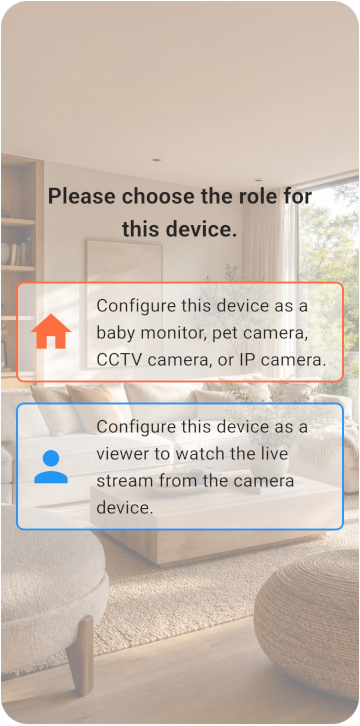
Prepare two phones and choose Monitor or Viewer on screen.
- Both phones can connect to the internet.
- The Monitor phone can remain connected to power.
- At least 6 GB of storage is available.
TOMATE CAMERA GUIDE
Prepare two phones: one as the camera and one for remote viewing. Follow these steps to start in minutes.
BEFORE YOU START
Choose a role for each phone and check the network, camera, and microphone permissions.
Prepare two phones and choose Monitor or Viewer on screen.
VIEWER SETUP
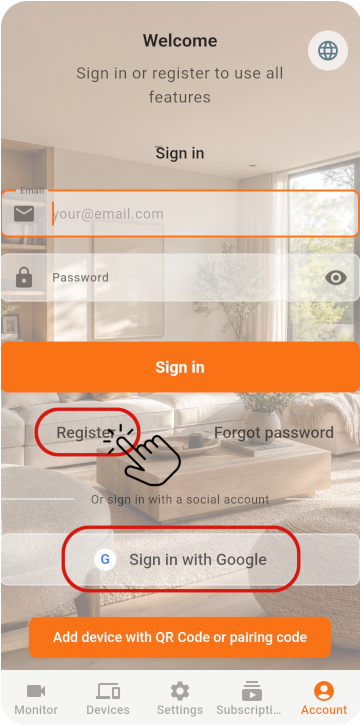
Register the Viewer and generate its pairing QR code.
On the first phone, select Viewer and register an account to get a QR Code
MONITOR SETUP
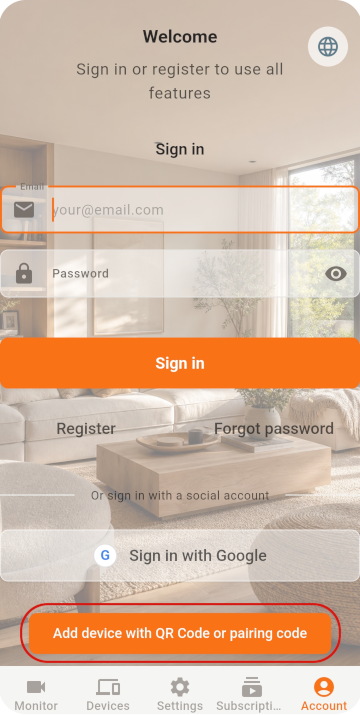
Scan the QR code with the old phone, then check its settings.
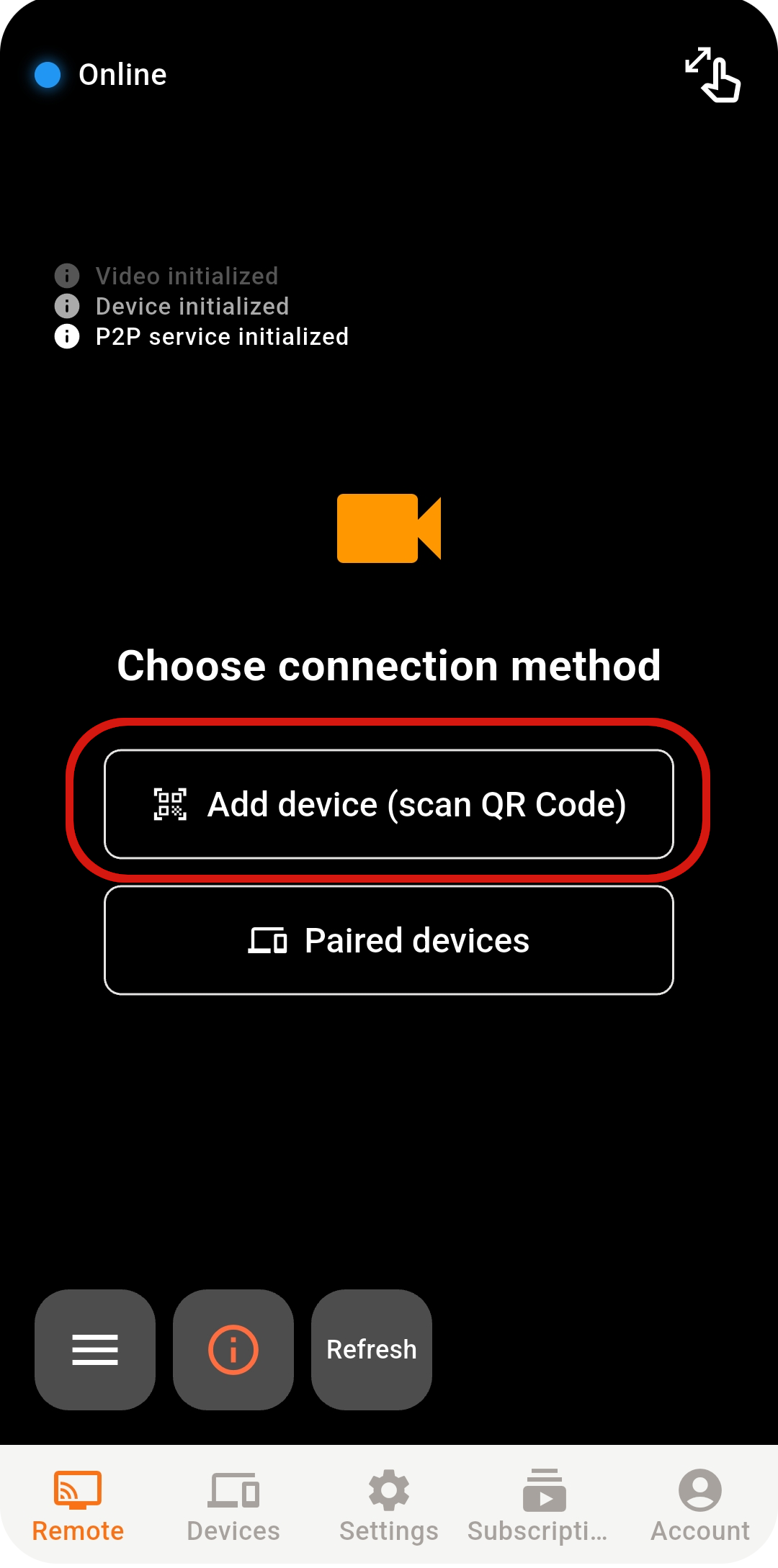
On the second phone, select Monitor and open the scanner
If you sign in directly with Google / Apple, make sure to use the same account on both phones
Scan the QR Code to finish pairing
LIVE VIEW
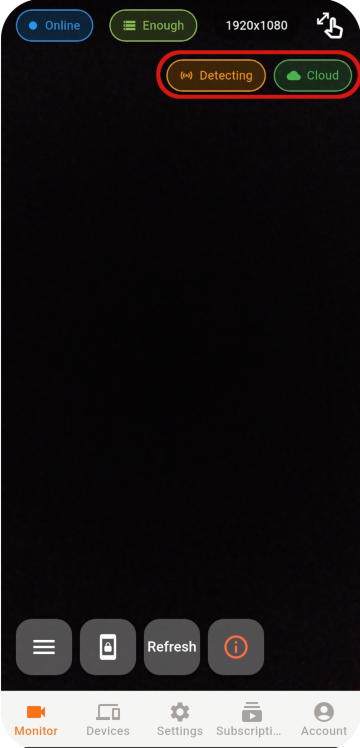
Select an online Monitor from the Viewer to open the live view.
If a connection still cannot be established, check the network, app state, and network environment.
STABILITY & SECURITY
After setup, check the placement, account, and device security.
Never share your password or pairing QR code, and remove devices you no longer use.
Do not cover a phone that stays plugged in, and check its battery temperature regularly.
Use the latest release for connection, security, and feature improvements.
READY TO GET STARTED?
Explore Tomate Camera use cases, features, and pricing.