TOMATE CAMERA GUIDE

पुराने फोन को घर की निगरानी करने वाली आँख बनाएँ

दो फोन तैयार करें: एक कैमरा और दूसरा दूर से देखने के लिए। कुछ मिनट में शुरू करें।

लगभग 5 मिनट2 फोन चाहिएतेज़ QR पेयरिंग
01

BEFORE YOU START

शुरू करने से पहले

Choose a role for each phone and check the network, camera, and microphone permissions.

Step 1

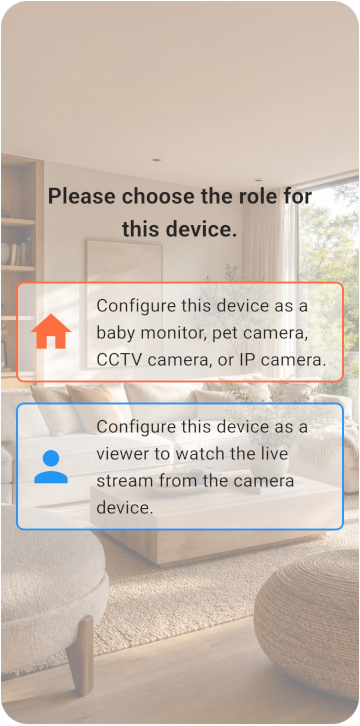
Choose the Viewer and Monitor

दो फोन तैयार करें और कैमरा या व्यूअर मोड चुनें।

  • दोनों फोन इंटरनेट से जुड़ सकते हैं।
  • Monitor फोन बिजली से जुड़ा रह सकता है।
  • कम से कम 6 GB स्टोरेज उपलब्ध है।
Choose the Viewer and Monitor
02

VIEWER SETUP

Viewer सेट करें

Register the Viewer and generate its pairing QR code.

Step 1

Register the Viewer

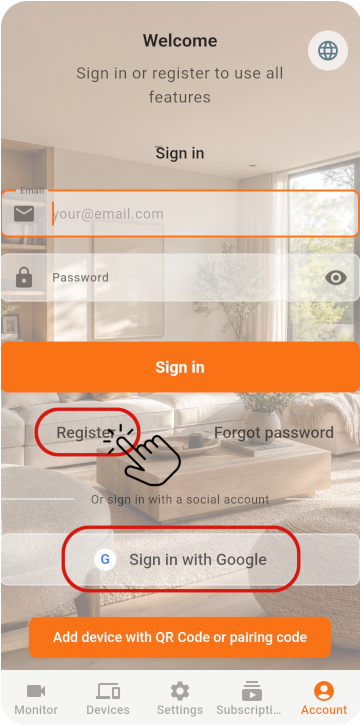
पहले फोन पर Viewer चुनें और खाता पंजीकृत करके QR Code प्राप्त करें

  1. ईमेल और पासवर्ड से रजिस्टर करने पर रजिस्ट्रेशन के बाद ईमेल सत्यापित करें।
  2. सत्यापन ईमेल स्पैम फ़ोल्डर में जा सकता है। Tomate Home Camera से आए ईमेल देखें।
  3. सोशल खाते का उपयोग करते समय Monitor पर भी उसी खाते से साइन इन करें।
Register the Viewer
Step 2

Show the pairing QR code

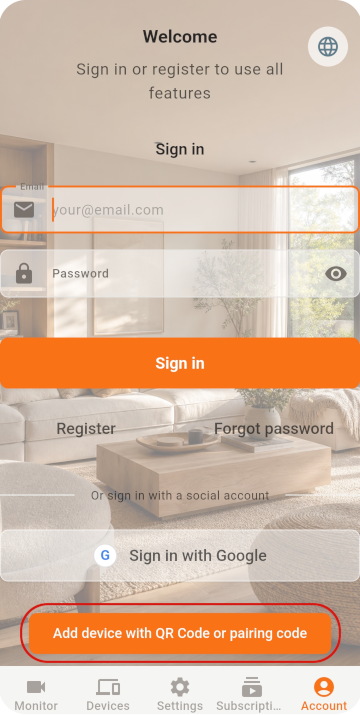
पहले फोन पर Viewer चुनें और खाता पंजीकृत करके QR Code प्राप्त करें

Show the pairing QR code
03

MONITOR SETUP

Monitor सेट करें

Scan the QR code with the old phone, then check its settings.

Step 1

Scan the QR code with the Monitor

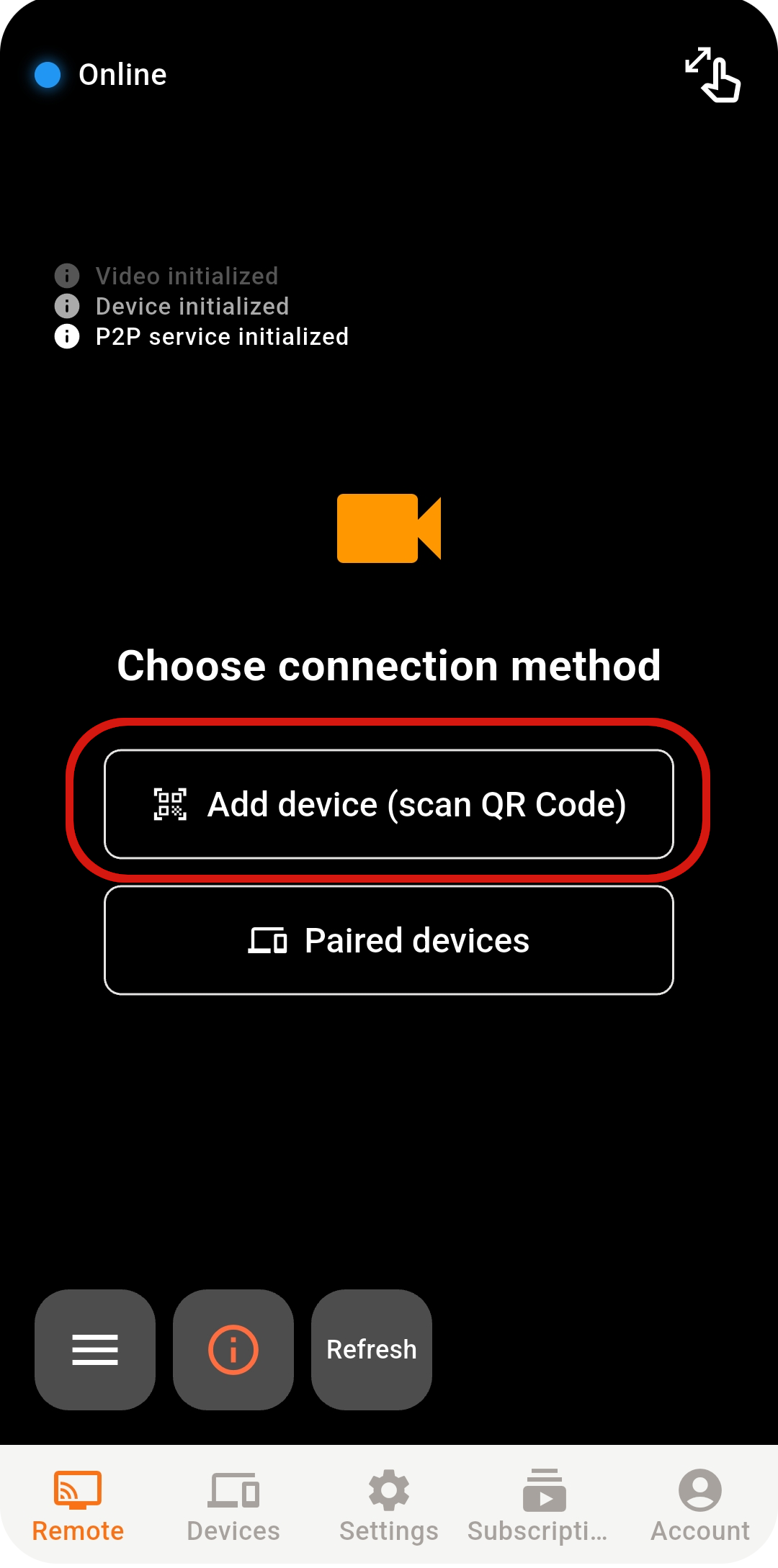
दूसरे फोन पर Monitor चुनें और स्कैनर खोलें

Scan the QR code with the Monitor
Step 2

Confirm the sign-in account

यदि Google / Apple से सीधे साइन इन करते हैं, तो दोनों फोन पर एक ही खाता चुनें

Step 3

Check Monitor settings

QR Code स्कैन करके पेयरिंग पूरी करें

  1. Continue recording: लाइव वीडियो सहेजने के लिए रिकॉर्डिंग चालू करें।
  2. Motion recording: हलचल मिलने पर अपने आप रिकॉर्ड करता है।
  3. Motion snapshot: हलचल मिलने पर अपने आप स्नैपशॉट लेता है।
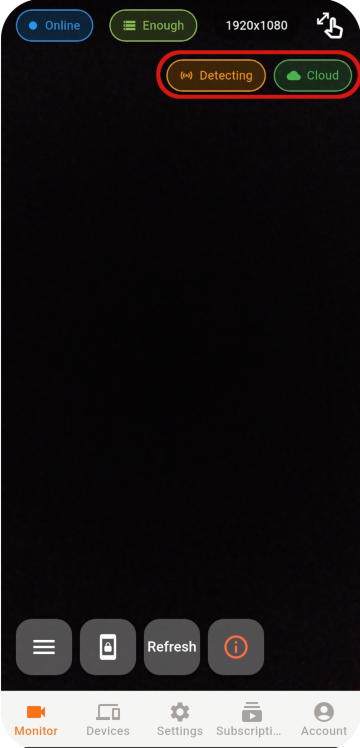
  4. ऊपर दाएँ कोने में जाँचें कि मोशन डिटेक्शन और क्लाउड स्टोरेज चालू हैं।
  5. जाँचें कि पर्याप्त स्टोरेज उपलब्ध है।
Check Monitor settings
04

LIVE VIEW

दूर से देखना शुरू करें

Select an online Monitor from the Viewer to open the live view.

Step 1

Select an online device

Select an online Monitor from the Viewer to open the live view.

Select an online device
Step 2

Reconnect if the connection drops

Select an online Monitor from the Viewer to open the live view.

  1. सेवा को फिर से शुरू करने के लिए Refresh दबाएँ।
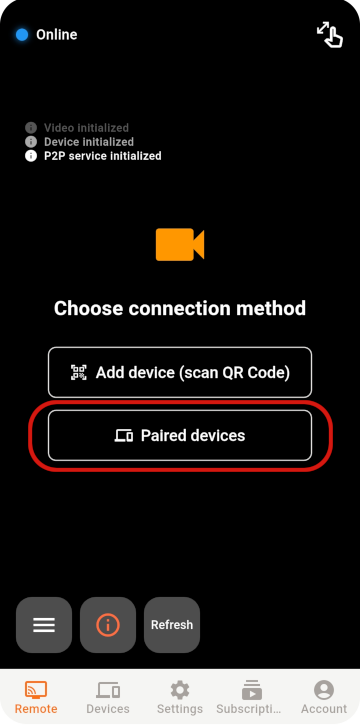
  2. Paired Devices खोलकर जाँचें कि Monitor ऑनलाइन है। सूची में न दिखे तो Monitor ऑफ़लाइन है या रजिस्टर नहीं है।
  3. फिर से कनेक्ट करने के लिए Monitor चुनें।
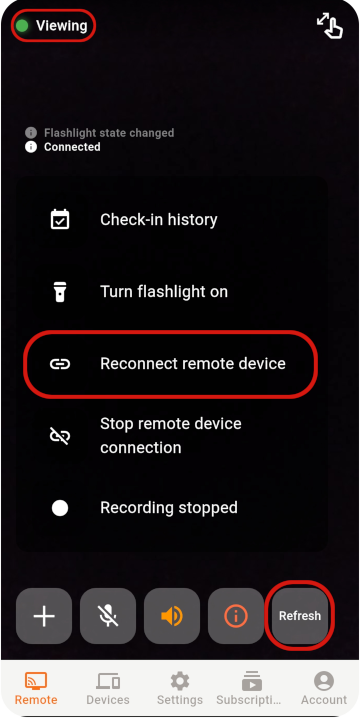
  4. कनेक्शन अस्थिर हो तो उसी Monitor से दोबारा जुड़ने के लिए Reconnect Remote Device का उपयोग करें।
Reconnect if the connection drops
कनेक्शन विफल होने पर

इन बातों को क्रम से जाँचें

यदि कनेक्शन अब भी नहीं बनता, तो नेटवर्क, ऐप की स्थिति और नेटवर्क परिवेश जाँचें।

  • सुनिश्चित करें कि दोनों फोन स्थिर इंटरनेट से जुड़े हैं।
  • Monitor ऐप खुला रखें और बैटरी सेवर मोड बंद करें।
  • Monitor ऐप को सामने रखें और पावर या होम बटन न दबाएँ।
  • जल्दी दोबारा जुड़ने के लिए Refresh दबाएँ। फिर भी विफल हो तो ऐप दोबारा शुरू करें।
  • कॉर्पोरेट नेटवर्क में सख्त फ़ायरवॉल हो सकते हैं। संभव हो तो अधिक खुले नेटवर्क का उपयोग करें।
05

STABILITY & SECURITY

स्थिरता और सुरक्षा सेटिंग्स

After setup, check the placement, account, and device security.

01

Protect your account

Never share your password or pairing QR code, and remove devices you no longer use.

02

Keep the phone ventilated

Do not cover a phone that stays plugged in, and check its battery temperature regularly.

03

Keep the app updated

Use the latest release for connection, security, and feature improvements.

READY TO GET STARTED?

Two phones are all you need to watch over home

Explore Tomate Camera use cases, features, and pricing.

Tomate Camera जानें